
Get your inventory in front of more buyers — syndicating listings the smart way
Aging units usually aren't overpriced — they're under-exposed. See how to syndicate listings per vehicle to AutoTrader, Cars.com, Facebook and more in DealerClick.

You know the unit. It rolled onto the lot with fresh reconditioning and a fair price, and for a week or two you expected it to move. Now it's just sitting. Every day it doesn't sell, it quietly costs you money — and the frustrating part is, it might not be the car's fault at all. It just isn't being seen where buyers are actually looking.
That's the good news: exposure is a lever you control. Here's how to pull it the smart way — one vehicle at a time — using the Inventory Advertising screen you may already have.
Why good units stall
A car that misses its window usually isn't broken or wildly overpriced. It's under-exposed.
Today's shoppers do most of their homework online before they ever walk onto a lot. Industry research suggests buyers spend roughly 14 hours researching a purchase and now visit only a small handful of dealerships in person — often just one or two, versus four or five a decade ago (Fullpath). If your vehicle isn't listed where those hours are being spent, most of your potential buyers never know it exists.
Meanwhile, the clock is running. A unit that sits racks up real carrying cost — floorplan interest, insurance, and depreciation add up daily, and industry estimates commonly put that in the range of $30–$40 per unit per day (AutoRemarketing). Many dealers use 30/60/90-day checkpoints to decide when to act (AutoAlert). But before you reach for a price cut at day 30, it's worth asking a cheaper question first: is this car even in front of enough buyers?
The fix: syndicate per vehicle, per platform
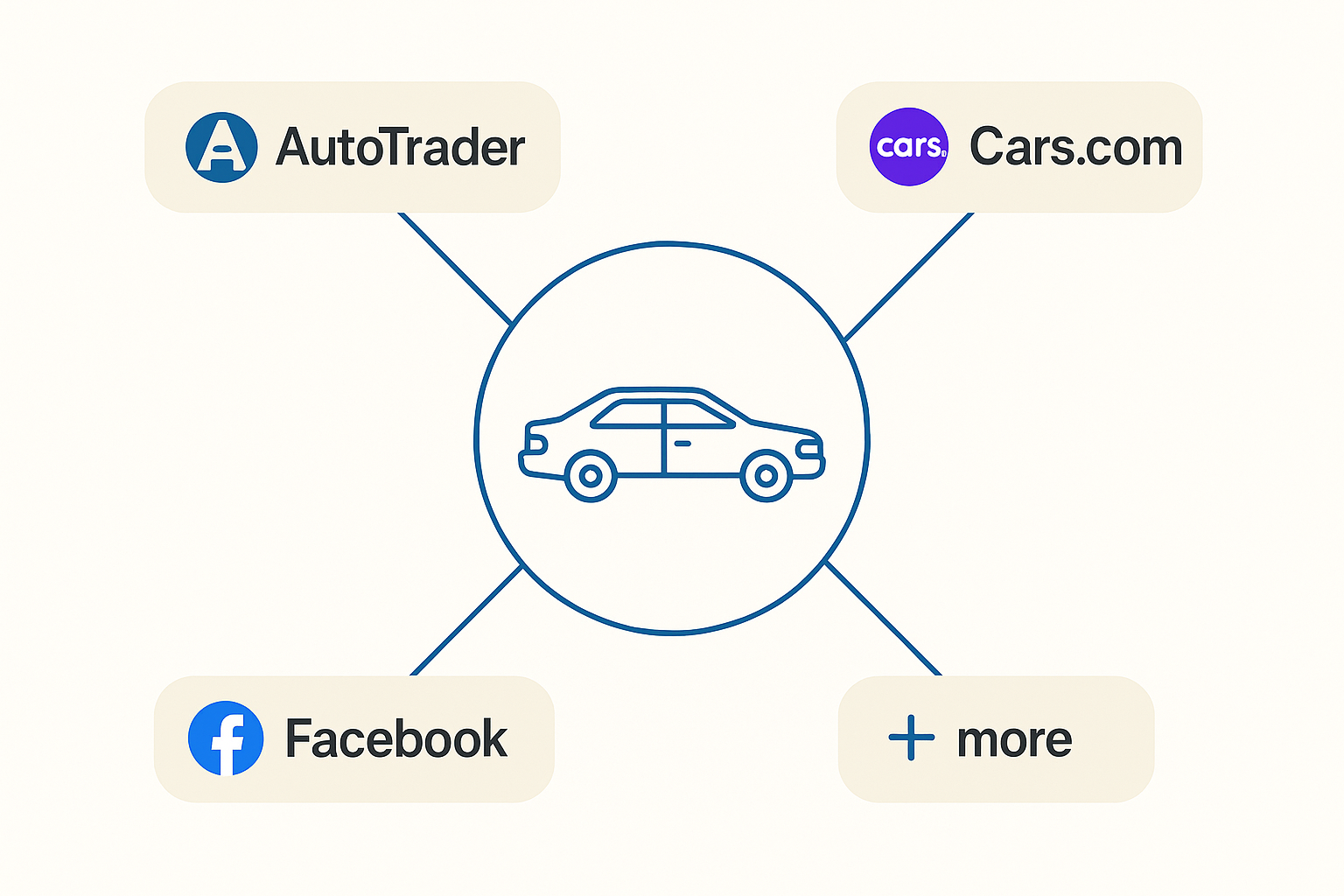
DealerClick's Inventory Advertising lets you control which vehicles are advertised on each third-party platform — AutoTrader, Cars.com, Facebook, and others — and each platform keeps its own feed: the list of vehicles you're sending to it [help/inventory-advertising].
That per-platform control is the whole point. A vehicle can be advertised on some platforms and not others [help/inventory-advertising]. So when a unit stalls, you don't have to touch anything else on your lot — you just widen its reach by adding it to another feed or two. One car, more eyes, no guesswork.
How it works
The Inventory Advertising screen shows a card for each advertising platform. The button on each card tells you where you stand with it — Manage (active), Sign In, Sign Up, or Request [help/inventory-advertising]. From there it's a quick loop:
- Click "Manage" on a platform to open its vehicle list.
- Check the vehicles you want to advertise there — check to add a car to that platform's feed, uncheck to remove it. Use "Check All" to select the whole list at once.
- Click "Save." A counter shows how many vehicles are in that feed.
Repeat for whichever platforms make sense for that unit. Because each feed is independent, you can push your slow-movers everywhere and keep tighter control over the rest — all from one screen [help/inventory-advertising].
Make the listing worth the click
More exposure only helps if the listing earns the click once a shopper finds it. Two things do most of the work here, and both live in the same system:
- Photos. Upload plenty of them on the vehicle's Photos tab. DealerClick's AI feature detection even suggests equipment from your images, so the listing fills out faster [help/inventory-id]. Most platforms show your photos exactly as entered, so current, complete images matter [help/inventory-advertising].
- Price. Keep the asking price current — most platforms display it exactly as you've entered it [help/inventory-advertising]. When you're setting or revisiting a number, the Values tab shows KBB and MMR book values to help you price competitively [help/inventory-id]. (Those are pricing references, not guaranteed sale or trade-in amounts.)
A well-photographed, fairly priced unit that shows up on more of the sites buyers are already browsing is a very different car from the one quietly aging in a single feed.
Two ways to read this
If you're running your lot across a handful of separate portals, this is the case for one screen. Your inventory, your CRM, your deals, and your advertising all live in one system in DealerClick [capabilities] — so syndicating a vehicle isn't a separate chore in a separate login. You manage the whole lot, and where it's advertised, from the same place.
If you already run DealerClick, there's a good chance you're using less of Inventory Advertising than you could. Pull up your oldest units and check whether they're on every feed that makes sense for them. Turning on one or two more channels for a car that's been sitting is about the lowest-effort move you can make before you start discounting — and it's already part of the system you run.
Where to start this week
Pick your three oldest available units. Open Inventory Advertising, make sure each one is on the feeds where your buyers actually shop, and confirm the photos and price are current. That's it — no price cut required to find out whether exposure was the real problem.
Want to see it in action? Book a demo and we'll walk you through syndicating a vehicle to more buyers, start to finish.
Stay Updated
Get the latest auto dealer insights delivered straight to your inbox.
No spam. Unsubscribe anytime.