
One system from showroom to service bay — running sales and the shop together
Keep your service department in the same system as sales: service dashboard, repair orders, a service calendar with technician scheduling, and parts — no re-keying.
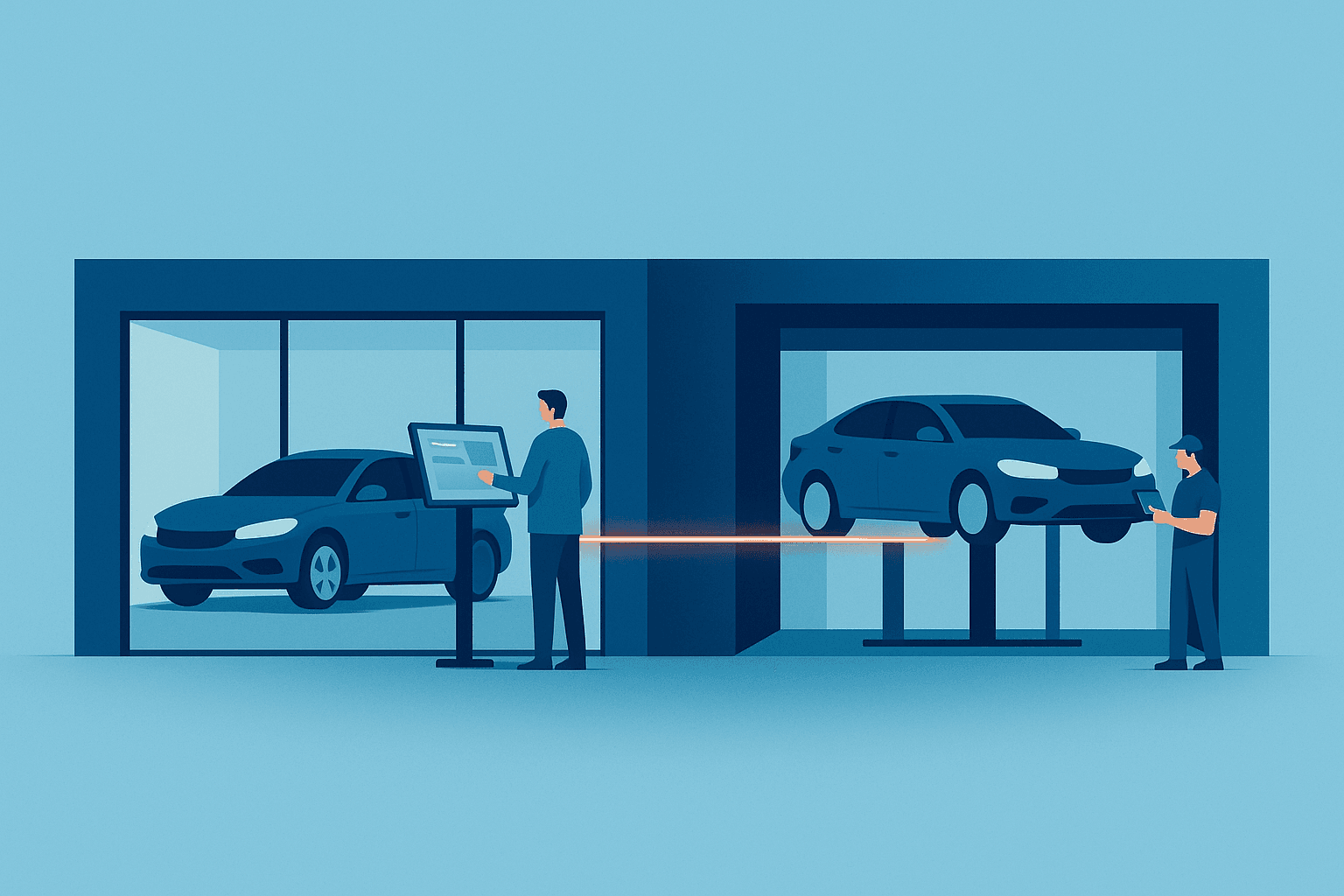
Most dealership software is built for the front of the store — inventory, leads, and deals. Then a car sells, comes back six months later for a brake job, and the shop is running on a whiteboard or a completely separate system. The same customer and the same vehicle get typed in all over again.
DealerClick was built so the service bay lives in the same system as the showroom. If you run a shop — or you've been meaning to — here's what "one system from showroom to service bay" actually looks like.
The split-system tax
When sales and service don't share a system, every hand-off is a re-key. The customer you already have on file gets re-entered at the service counter. The VIN you already stocked in gets typed again onto a work order. Nothing lines up, so nothing reports cleanly.
Keeping the shop in the same place as sales removes that seam. In DealerClick, the service department is part of the same platform as inventory, CRM/leads, and deals — one system for the whole store [capabilities].
The service dashboard: the shop at a glance
The service dashboard (/service) is where the shop starts its morning. Summary cards show open repair orders, work in progress, and completed jobs, plus today's appointments and key numbers — the whole shop at a glance [help/service].
One thing worth knowing: the dashboard is a read-only overview. You click into a repair order or an appointment to actually make changes [help/service]. It's your worklist, not your workspace — a fast way to see what needs attention before you dive in.
Repair orders: the work queue
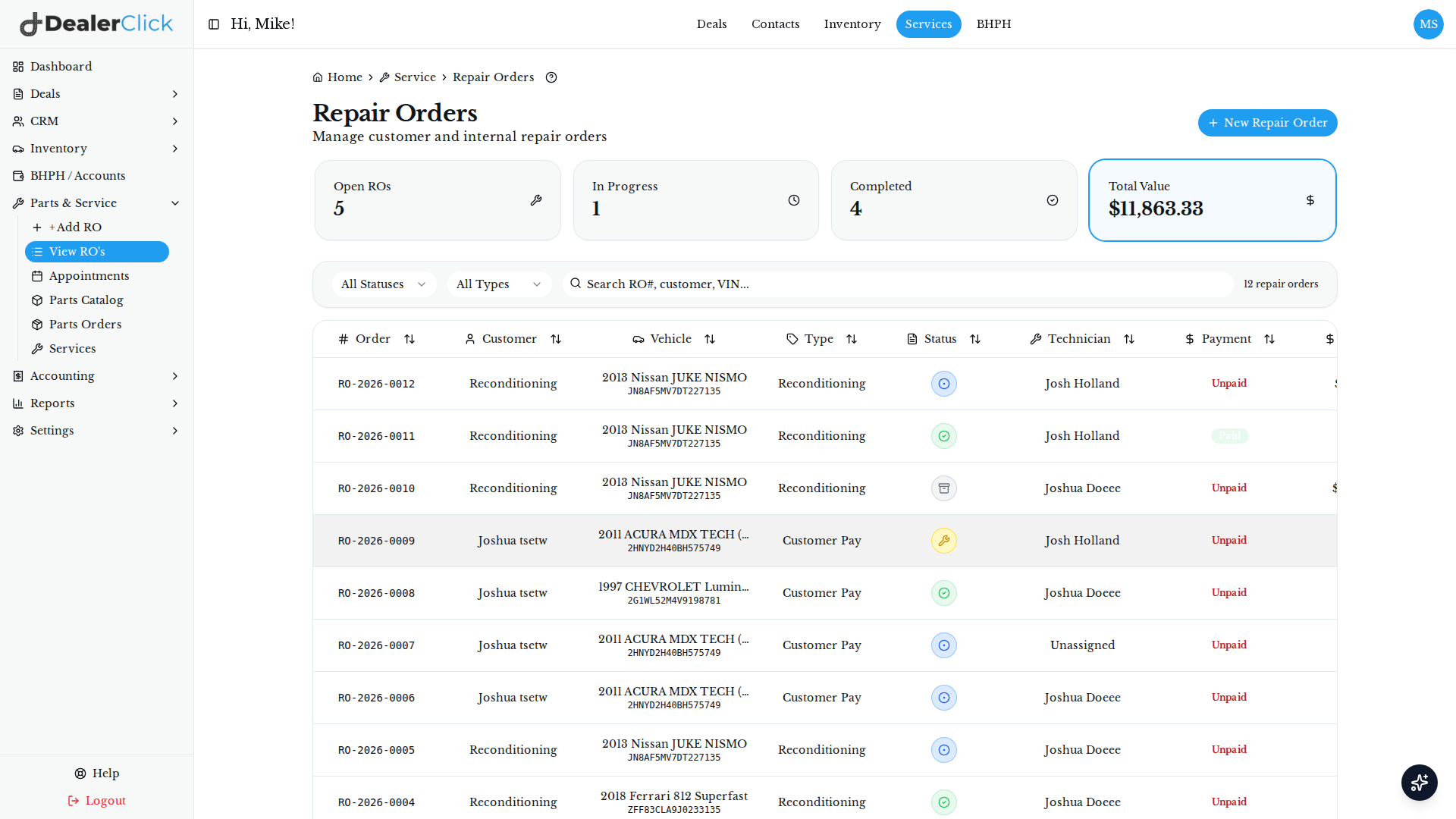
Repair Orders (/service/repair-orders) is the queue your techs work from. Starting a new RO, you pick the customer and the vehicle — the ones already in your system — and choose the RO type: Customer Pay, Warranty, or Internal. Customer Pay bills the customer; Internal tracks shop or reconditioning cost, which is handy when the "customer" is really your own lot [help/service-repair-orders].
From there, a single repair order carries the whole job:
- Details — the customer's concern, priority, and the scheduled date and time.
- Line items — add a labor operation and assign the technician who'll do the work, then add parts, pulled from your catalog or entered manually.
- Workflow — the action buttons follow the job: Start Work moves it to In Progress, then Mark as Completed, then Close RO. If something was missed, you can reopen a closed RO from Change Status.
- Billing — totals update automatically as parts and labor go on, so you generate the invoice and close [help/service-repair-orders-id].
You can filter the queue by status (Open, In Progress, Completed) or by type, and search by RO number, customer name, or VIN to jump straight to the one you want [help/service-repair-orders].
The service calendar: appointments and technician scheduling
Booking work is its own screen. The Service Calendar (/service/calendar) gives you day, week, and technician views, so you can see the schedule the way you need it, find an open slot before you promise a customer a time, and click any appointment to open its repair order or reschedule [help/service-calendar].
A small but real safeguard: the system flags a technician booked for two jobs at once, so you don't accidentally double-book a tech or a bay. And because scheduling a repair order's date and time on the RO Details tab drops it onto this calendar, the queue and the schedule stay in sync — you're not maintaining two versions of the day [help/service-calendar].
Parts, in the same flow
Parts management is part of the same picture. As you build a repair order, you pull parts from your catalog straight onto the RO's line items (or enter them manually), and DealerClick handles parts management with parts orders alongside the work itself [capabilities][help/service-repair-orders-id]. Parts, labor, and the bill all live on one ticket instead of a separate ledger.
Why "same system" is the whole point
Here's the connected payoff. When a customer books service, they're usually already in your DealerClick CRM, and the vehicle is already in your inventory — so the repair order builds on records that already exist. No re-keying the customer, no retyping the VIN, no reconciling two systems that disagree. The CRM pipeline even carries a Service stage, so service isn't a bolt-on; it's part of how a contact moves through your store.
That breadth is the same story whether you're a franchise or independent auto dealer or you're running Buy Here Pay Here, Lease Here Pay Here, powersports, marine, RV, or trailer [capabilities]. If your customers bring their vehicles back, the shop belongs in the same system that sold them.
(One honest note for the front-of-store crowd: service contacts — technicians and service providers — can't be put on deals. The service side is for work orders, not for desking a sale [capabilities].)
See it end to end
If you're already selling in DealerClick and your shop is still on its own island, the service side is worth a look — it's the same customers and the same vehicles you're already managing. And if you're weighing a new system, "does it cover the shop too?" is a fair question to put to it.
The easiest way to judge either is to see it running. Book a demo and we'll walk you from the showroom to the service bay in one system.
Stay Updated
Get the latest auto dealer insights delivered straight to your inbox.
No spam. Unsubscribe anytime.